This chapter explains the editing mode in which the value stream display can be edited.
Contents
2. Creating and editing connections
How the individual objects can be edited is described in the chapter Object attributes.
2. Creating and editing connections
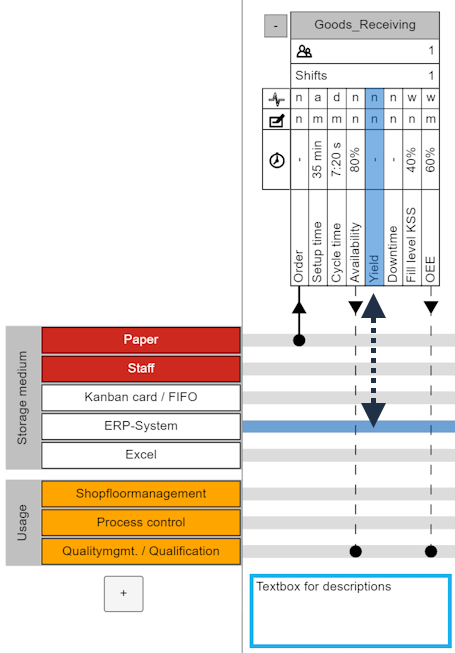
Figure 1 - Creating connections |
To create an edge from an object to a storage medium/usage unit, drag the mouse from an object attribute to the corresponding storage medium while holding down the mouse button. To create an edge in the other direction, perform the same operation in the opposite direction, i.e., from the storage medium/usage unit to the object attribute (see Figure 1).
Below the edges is a text box where descriptions can be inserted.
By clicking on the + button you can manually add a new group with new types. This opens a menu on the right-hand side where you can define the name and background color. For details, see the section on editing categories. |

Editing connections
To select and delete a connection, simply select it with the mouse and then press the [DEL] key. To select several connections, the following options are available
•Hold down [CTRL] key and select desired connections.
•A frame can be drawn up by holding down the mouse button for a longer time ("long click") (see Figure 5).
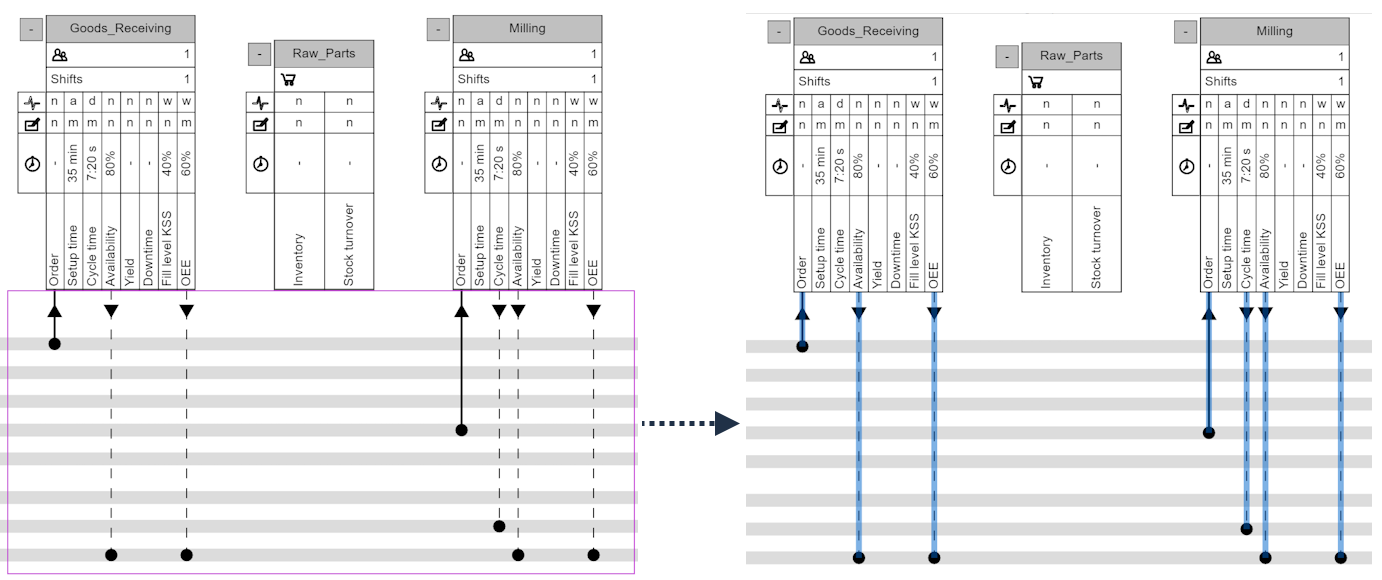
Figure 2 - Multi select
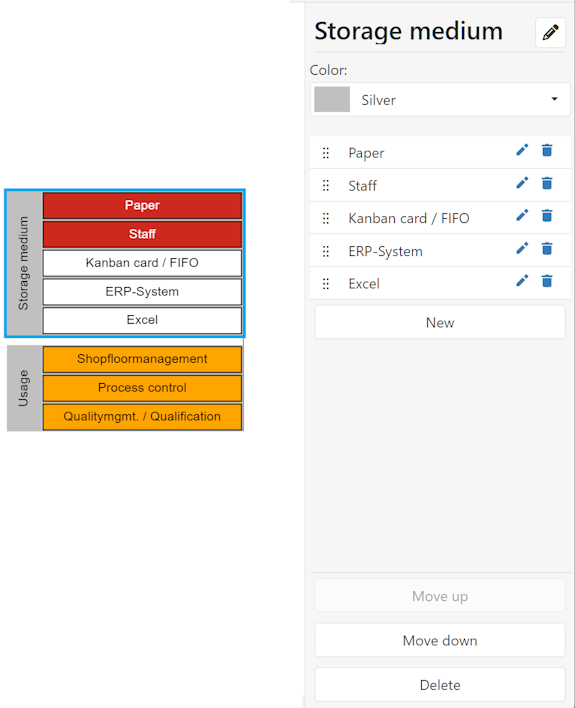
To edit the categories displayed on the left, click on the desired area in the application. A side menu will then open.
Figure 3 - Editing categories |
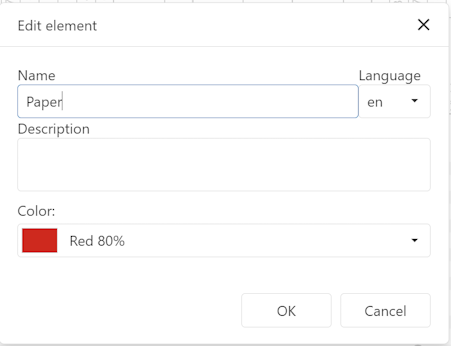
The dropdown menu Color can be used to set the desired background color for the area or the respective category. The buttons at the bottom of the dialog box can be used to adjust the position of the respective category (here, for example, Storage Medium). Clicking on an attribute (e.g., Paper) opens a new dialog box in which connections and elements can be edited. Details can be found in the chapter Editing mode (dialog based).
|



© SimPlan AG - Hanau District Court, Commercial Register (Part B) 6845 - info@simplan.de - www.simplan.de/en