In this additional mode, information flow edges can be set for all available information categories and process and supermarket objects contained in the value stream for each swimlane.
The assignment of incoming and outgoing information flow edges is selected using checkboxes. To enter this mode, first select one of the categories and then click on one of the available attributes.
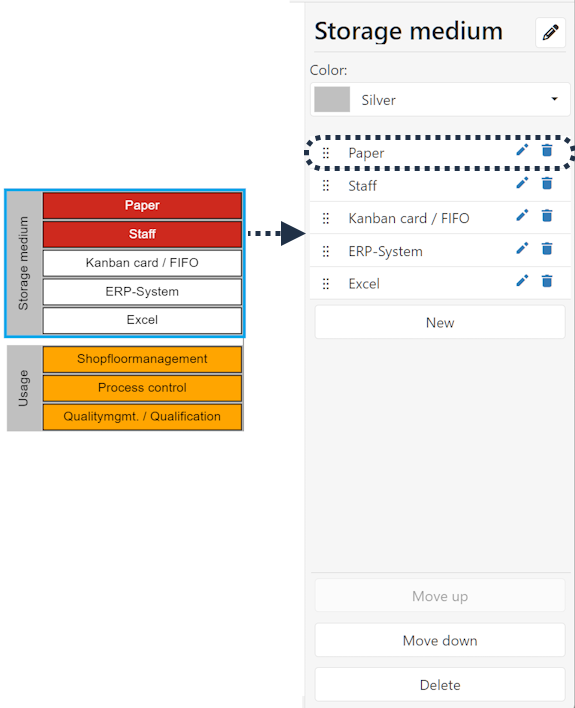
Figure 1 - Open dialog based mode

Figure 2 - Edit categories (dialog based)
By checking the boxes |
|
an edge is created between the respective objects. Clicking on the + button |
|
converts this into two empty check boxes |
|


To edit the element of the selected storage medium or the respective usage units, click on the list on the left side of the application. This opens a side menu on the right (see Figure 3).
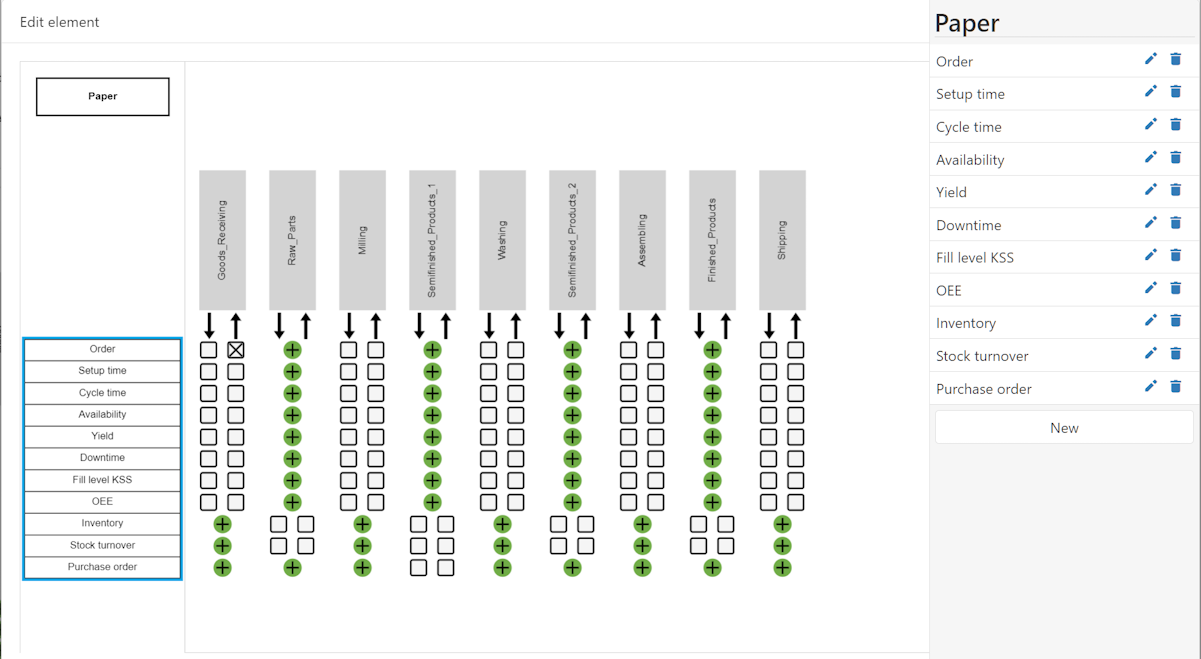
Figure 3 - Edit/add element
Clicking on the edit icon |
|
allows you to edit the name of the respective value in a dialog box. Clicking on the trash icon |
|
deletes the value. |


By clicking on the New button an entry can be added to the list of attributes for the element.
|
Notes: •The OK button is covered by the side menu. This can be closed at any time by clicking on a free area.
|

© SimPlan AG - Hanau District Court, Commercial Register (Part B) 6845 - info@simplan.de - www.simplan.de/en